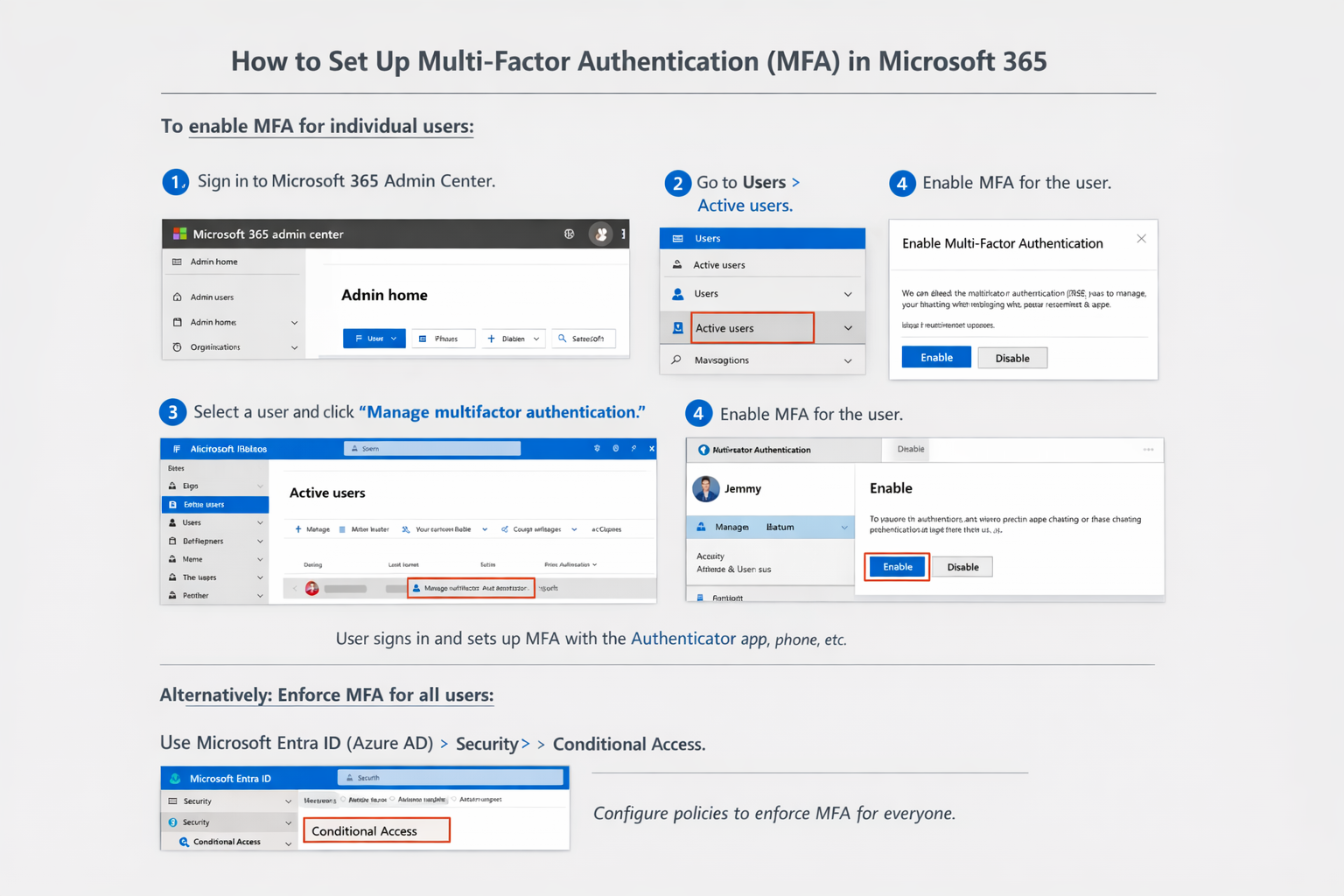
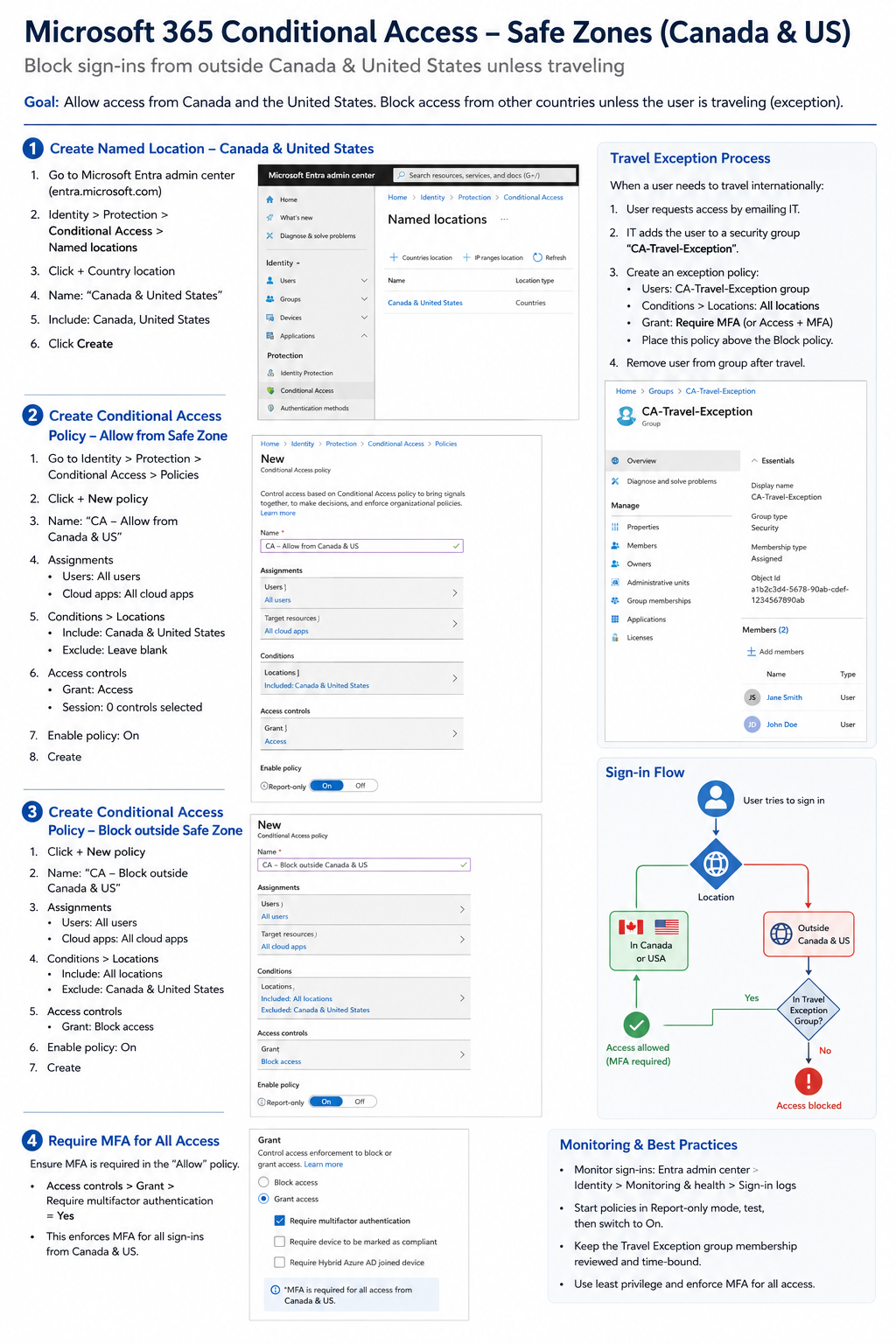
Modern organizations prioritize security, and protecting user identities is critical in a cloud-first world. Multi-Factor Authentication (MFA) and Conditional Access work together to create a strong security foundation:
- MFA adds an extra layer of verification beyond passwords.
- Conditional Access enforces security requirements based on user, device, and risk conditions.
This guide provides a practical overview of configuring MFA and Conditional Access in Microsoft 365, with links to official Microsoft Learn resources for deeper reference. Implementing MFA and Conditional Access is a key step toward Zero Trust security, reducing the risk of compromised accounts and unauthorized access.
Step 1: Enable MFA in Your Tenant
Use Microsoft Entra Admin Center
The recommended method is through the Microsoft Entra admin center:
- Sign in to https://entra.microsoft.com –> with an admin account (Global Administrator or Conditional Access Administrator).
- Navigate to 0Identity > Protection > Multifactor Authentication.
- From the Getting started page, go to Configure > Additional cloud-based MFA settings.
- Select your preferred authentication methods (like authenticator app, phone call, SMS).
- Optionally configure trusted IPs (bypass locations) and other settings.
Tip: If you use Security defaults, MFA is automatically enabled for your organization. However, Conditional Access policies require disabling Security defaults first.
Microsoft Learn — Official step-by-step tutorial
Step 2: Create a Conditional Access Policy
Example: Require MFA for All Users
- Go to Entra ID > Conditional Access > Policies.
- Choose + New policy and give it a meaningful name (e.g., Require MFA All Users).
- Under Assignments > Users or workload identities, select All users.
- Exclude emergency backup accounts to prevent lockout.
- Under Cloud apps or actions, select All cloud apps.
- Under Access controls > Grant, choose Require multifactor authentication.
- Set the policy to On and create it.
This ensures all users are required to use MFA when accessing resources covered by this policy.
- Microsoft Learn — Create Conditional Access to require MFA for all users
- Microsoft Learn — Require MFA for admins with CA
Quick Links to Official Microsoft Learn
- Conditional Access in Microsoft Entra ID
- Enable Azure MFA
- Enable per-user MFA in Microsoft Entra ID
- Require MFA for all users (CA)
- Require MFA for admins (CA)
- Zero Trust Security Principles: Microsoft Zero Trust Guidance
Here are two infographics for reference.