The Beginner’s Guide to the Ubuntu Desktop User Experience is crafted as a comprehensive resource for anyone embarking on their Linux journey. It offers clear, practical guidance tailored for beginners and hobbyists exploring Linux for the first time.
This guide brings together collaborative knowledge and trusted resources to help new users confidently set up Ubuntu virtual machines or desktop systems with ease. With its intuitive interface, robust community support, and reliable ecosystem, Ubuntu remains one of the most accessible and welcoming pathways into the world of Linux.
Ubuntu Releases
Ubuntu 25.10 – Questing Quokka
Ubuntu 25.10 is the latest interim release, supported until July 2026. Interim releases are ideal for users who want cutting-edge technology and are comfortable upgrading every nine (9) months. These releases include newer software stacks and updated hardware drivers.
Ubuntu 24.04.3 LTS (Recommended for Stability)
For maximum stability and long-term reliability, Ubuntu 24.04.3 LTS remains a trusted choice.
- Supported for 5 years
- Optional 10-year Extended Security Maintenance (ESM) for enterprise environments
Ubuntu 26.04 LTS – “Resolute Raccoon” is scheduled for release on April 23, 2025.
Ubuntu LTS lifecycle details can be found here. Download the Ubuntu 24.04.4 LTS and Ubunto 25.10 ISOs here.
Ubuntu Official Desktop Guide: An Essential Starting Point
Linux desktop environments have matured significantly, making Linux more accessible than ever. Learning Linux today is supported by extensive documentation, tutorials, forums, and community-driven resources.
Key Ubuntu Resources
The Ubuntu Desktop Guide serves as the fundamental resource for new users to familiarize themselves with the Ubuntu desktop environment. It provides essential support information, including resources, such as Ubuntu Help and Ask Ubuntu forum. For beginners learning Linux command lines on Ubuntu, a specific guide can be found here.
Installing Ubuntu Desktop
Ubuntu provides a step-by-step installation guide for installing Ubuntu on laptops or desktop computers as a primary operating system.
Disclaimer: Always back up your data before installing or dual-booting.
Virtualization: A Secure Learning Environment
Virtualization is an excellent method for learning Linux without risking your primary system.
Popular Virtualization Platforms
- Oracle VirtualBox
- Ubuntu VM guide for VirtualBox 7
- VMware Workstation Pro & Fusion (Free for Personal Use)
VirtualBox Documentation & Training
Snapshots allow users to revert failed experiments easily, making virtualization ideal for beginners.
VirtualBox Guides for Ubuntu and Zorin
Users and Groups (GUI Method)
Although the Linux terminal can feel intimidating, Ubuntu provides GUI-based user management.
Steps
- Open Settings
- Search for Users
- Click Unlock and enter the administrator password
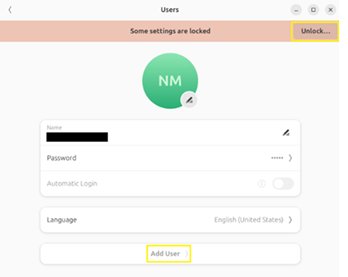
- Select Add User

- Disable Automatic Login (recommended for security)
Best Practice
- Use a standard account for daily work
- Use an administrator account only when elevated privileges are required
Customizing Ubuntu with GNOME Tweaks & Extension Manager
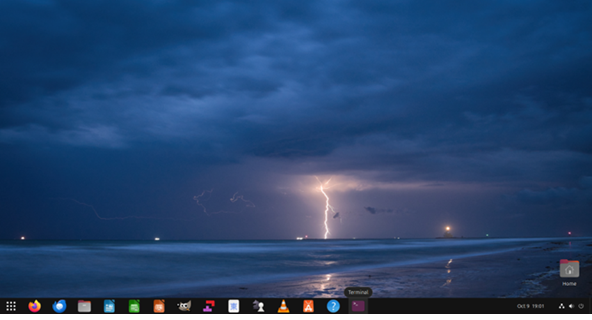
GNOME Tweaks
GNOME Tweaks allows deeper customization beyond standard system settings.
Install GNOME Tweaks
Proceed to install GNOME Tweaks with the following Terminal command
sudo apt install gnome-tweaks
Launch GNOME Tweaks via Terminal command line: gnome-tweaks
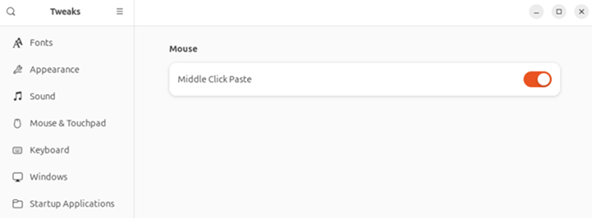
Extension Manager
Extension Manager simplifies browsing, installing, and managing GNOME Shell extensions.
Install from Ubuntu App Center Search: Extension Manager
Recommended GNOME Shell Extensions
- Blur My Shell – Adds blur effects to panels and the dock
- Dash to Panel – Traditional Windows-style taskbar
- Dash to Dock – macOS-like dock at the bottom
- User Themes – Apply custom GNOME Shell themes
- Vitals – Displays CPU, RAM, disk, temperature, and network stats
More extensions can be found at https://extensions.gnome.org
Themes and customization
Under Appearance in the left pane, further customizations of the Linux desktop can be adjusted to personal preferences.
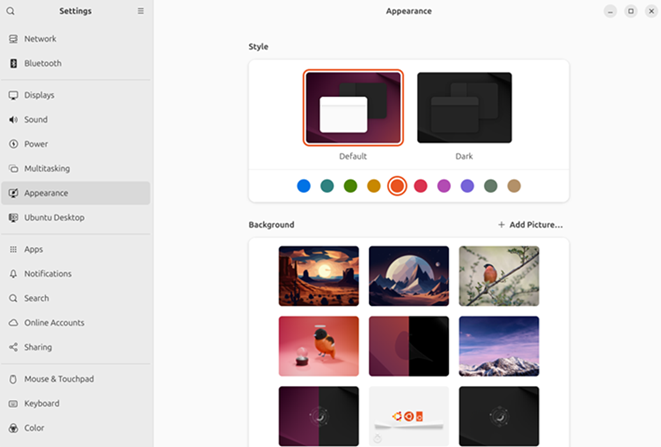
In the Ubuntu Desktop on the left pane, useful customization option includes the adjustment of desktop icon, dock, and enhancing tiling.
Antivirus Protection – ClamAV
ClamAV detects viruses, trojans, and malware on Linux systems. Install via Ubuntu Software Center or via terminal:
sudo apt install clamav
Alternative antivirus options for Ubuntu:
Configuring Firewall on Ubuntu
Ubuntu uses UFW (Uncomplicated Firewall) by default.
- Disabled by default
- Designed for simplicity and effectiveness
- GUI Firewall (Recommended for Beginners)
- GUFW – graphical front end for UFW
sudo apt install gufw
Why Firewalls Matter
- Security – Controls traffic based on rules
- Access Control – Restricts exposed services
- Network Segmentation – Limits lateral threats
UFW documentation is a great starting point to learn more about Uncomplicated Firewalls in Ubuntu.
Effective Backup Methods
Data loss can severely impact both home and business users. Backups protect against:
- Hardware failure
- Accidental deletion
- Malware and ransomware
Deja Dup (Built-in Backup Tool)
Deja Dup offers a simple GUI-based backup solution. To install (if not already installed) via Terminal:
sudo apt install deja-dup
In the Applications menu, proceed to open Deja Dup. Alternatively, search for “Backup” or Deja Dup” and open the application.
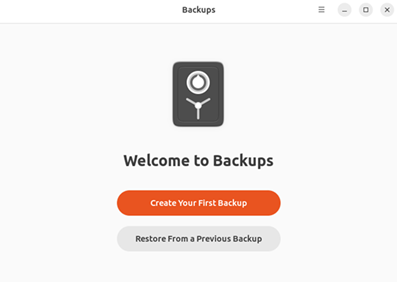
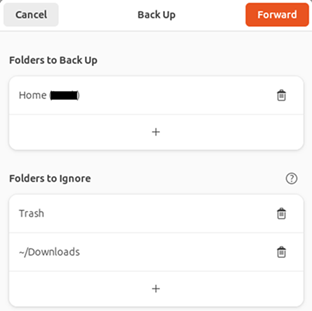
Once Deja Dup is opened, proceed to configure the backup settings. There are options for your backup location, schedule, and other preferences. The storage location can be local, network or cloud. Specify the desired folders to be included or excluded from backups.
When selecting Forward, in Location, there are options to save files to Google Drive, Microsoft OneDrive, Network Server and Local Folder. An external hard drive, USC Thumb Drive, or a WD My Cloud Home, Synology or Qnap NAS are also viable options for backup.
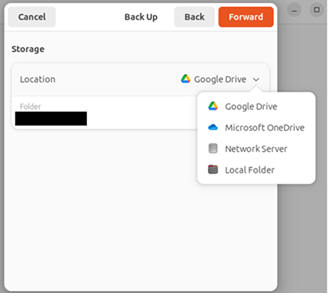
Supported Backup Locations
- Local folders
- Network servers
- Google Drive
- Microsoft OneDrive
- External drives
- NAS devices (Synology, QNAP)
Encryption is optional but highly recommended. To Set Encryption (Optional) -> for added security, you have the option to encrypt your backup for added security. Be sure to remember the password. Click on Forward to complete the process.
Official guide: DejaDup
Understanding File Management
Graphical File Manager: Nautilus
Nautilus allows users to:
- Create, rename, move, delete files
- Drag & drop folders
- View file properties and permissions
- Navigate easily using the sidebar
Why Learn Terminal File Management?
The terminal provides speed, precision, and power, especially when:
- Managing permissions
- Working on servers
- Automating tasks
Linux File Permissions Explained
Permission Structure
- Owner
- Group
- Others
Permissions include:
r – read w – write x – execute
Example -rwxr-xr– 1 user group 1234 Jul 27 10:15 script.sh
Using chmod
Symbolic Mode
chmod +x filename chmod g-w filename
Numeric Mode chmod 754 filename
Numeric Permission Reference
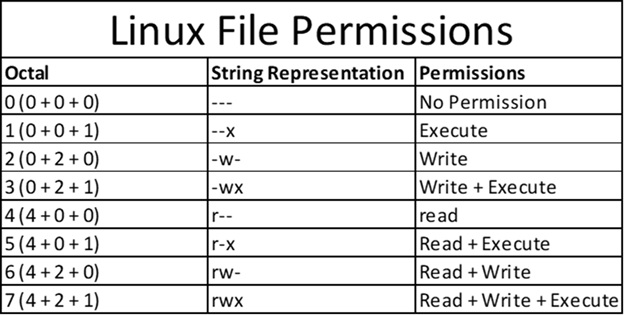
- 777 – Full access for all
- 764 – Owner full, group read/write
- 755 – Owner full, others read/execute
- 744 – Owner full, others read
- 740 – Owner full, group read only
Configuring Samba
Samba enables cross-platform file sharing between Linux, Windows, and macOS.
Official Ubuntu Samba Guide: Samba
Popular Software Applications
- LibreOffice – Office suite
- OnlyOffice – Microsoft-compatible office tools
- Thunderbird – Email, calendar, RSS
- GNOME Calendar – Calendar sync support
- Firefox – Default privacy-focused browser
- GIMP – Advanced image editor
- VLC – Universal media player
- Zoom – Video conferencing
Microsoft 365 Web works well on Ubuntu, but lacks:
- Excel macros
- Advanced add-ins
- Large dataset performance
Zorin OS 18 – Easy Transition from Windows or macOS
Zorin OS 18 offers:
- Windows-like layout
- Performance optimizations
- User-friendly experience for newcomers
VirtualBox installation guide for Zorin OS: https://zorin.com/os/
Final Thoughts
Linux continues to grow in popularity thanks to its flexibility, performance, and customization options.
Ubuntu is an excellent starting point Zorin is ideal for Windows/macOS users
Other notable distros: